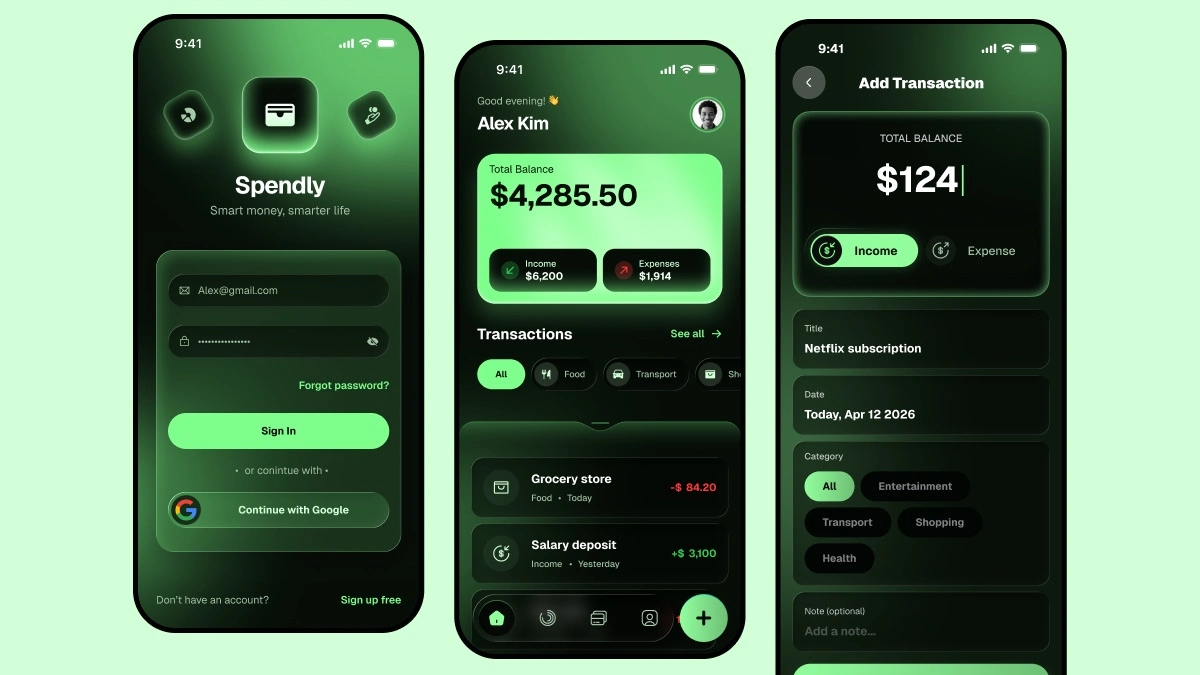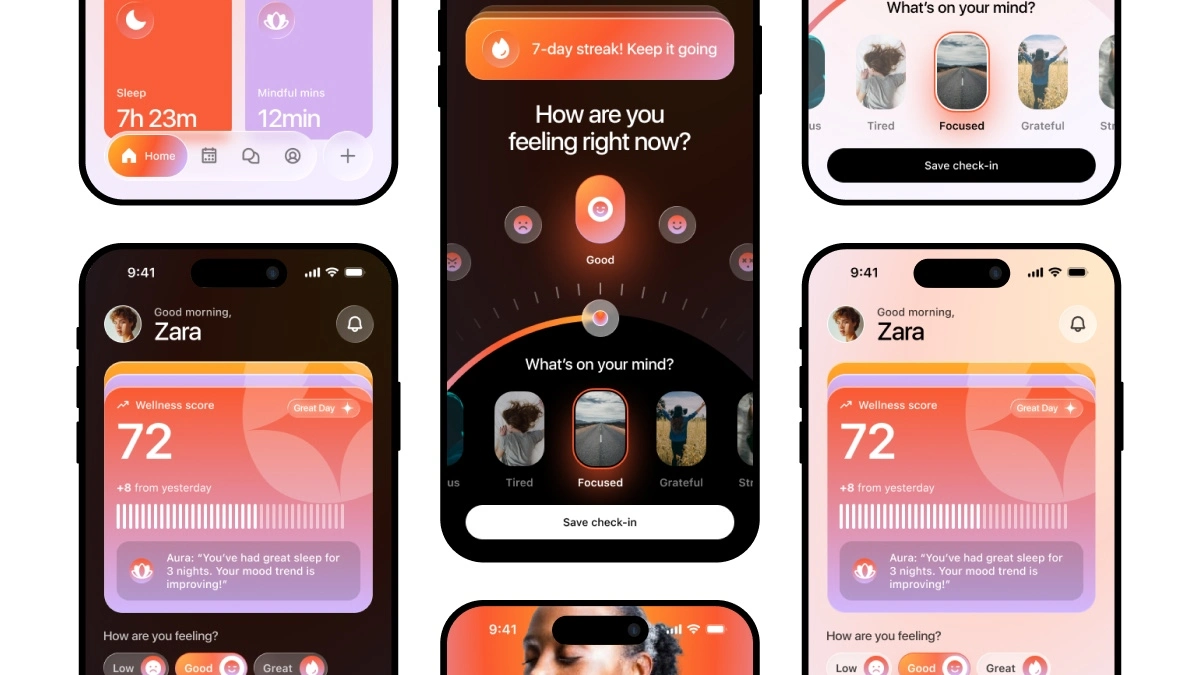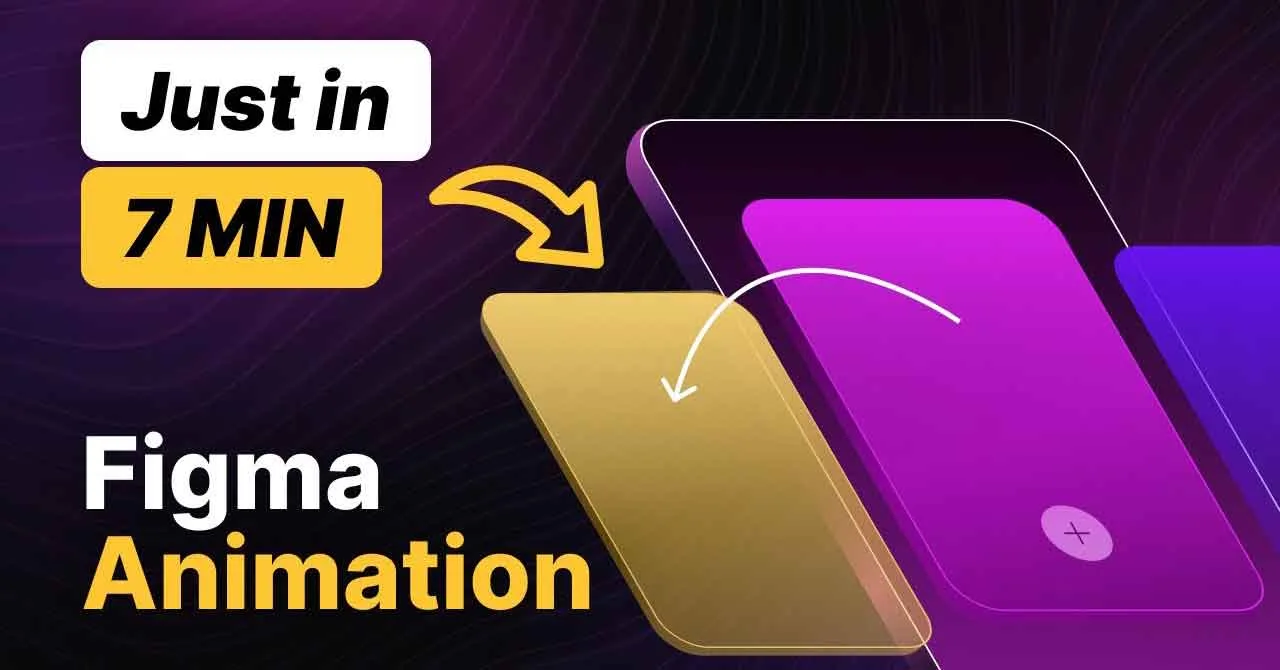
Are you looking to create smooth and interactive carousel animations in Figma? In this beginner-friendly tutorial, we’ll walk you through the process of designing and prototyping a Figma Carousel Animation using components. Whether you’re designing a fashion app, a product showcase, or a portfolio slider, this step-by-step guide will help you build a seamless card swipe animation in Figma.
Learn how to create slider or figma carousel animation & prototyping. In this Figma tutorial, I’ll show you image carousel animation for fashion cards swipes transitions.
To learn Figma, UI/UX design, web design, mobile app ui design, responsive design, no-code development, and AI-powered tools, and to download premium quality UI kits, Check out my YouTube channel (@uixDesignAcademy) for simple and easy beginner tutorials!
Why Use Figma for Carousel Animations?
Figma is a powerful design tool that allows you to create interactive prototypes without coding. With its Smart Animatefeature and components, you can design dynamic slider or carousel animations that mimic real-world swiping effects. This technique is perfect for UI/UX designers who want to enhance their app and web designs with smooth, engaging transitions.
Step-by-Step Guide to Creating a Figma Carousel Animation
Step 1: Set Up Your Frames and Images
Start by creating a frame (e.g., 375×812 pixels for mobile) and adding your images. Arrange them in a horizontal layout, as this will allow users to swipe left and right.
Step 2: Create Components for Your Cards
Convert each image card into a component. This will help you maintain consistency and reuse elements easily. Using components also makes it easier to apply animations across multiple instances.
Step 3: Set Up Auto Layout (Optional)
If you’re designing a dynamic carousel slider, using Auto Layout can help you control spacing and responsiveness. Set horizontal padding and spacing between cards to ensure a smooth scrolling effect.
Step 4: Add Interaction Using Smart Animate
Now, go to Prototype Mode and link each card to its next and previous states. Choose “On Drag” as the trigger and “Smart Animate” as the transition. This will create a swipe effect similar to real app interactions.
Step 5: Test Your Carousel Animation
Hit the Play button to preview your animation. If needed, tweak the easing settings (e.g., Ease In & Out or Linear) to make the transition more natural.
Final Thoughts
With this simple yet effective Figma Carousel Animation, you can create interactive card swipes that enhance user experience. Whether you’re designing for mobile apps, websites, or presentations, mastering this technique will take your UI/UX skills to the next level.
📌 Watch the full tutorial on YouTube and start animating today!